


Aplicabilidad
Aplicable a: Gate Web
Preparación: Asegúrate de haber iniciado sesión en GateClaw (Blue Lobster) y de tener permisos de gestión del espacio de trabajo en Slack
Tiempo estimado: 10 minutos
Objetivo
Esta guía te mostrará cómo configurar el conector de Slack de GateClaw (Blue Lobster) en Gate Web.
Pasos
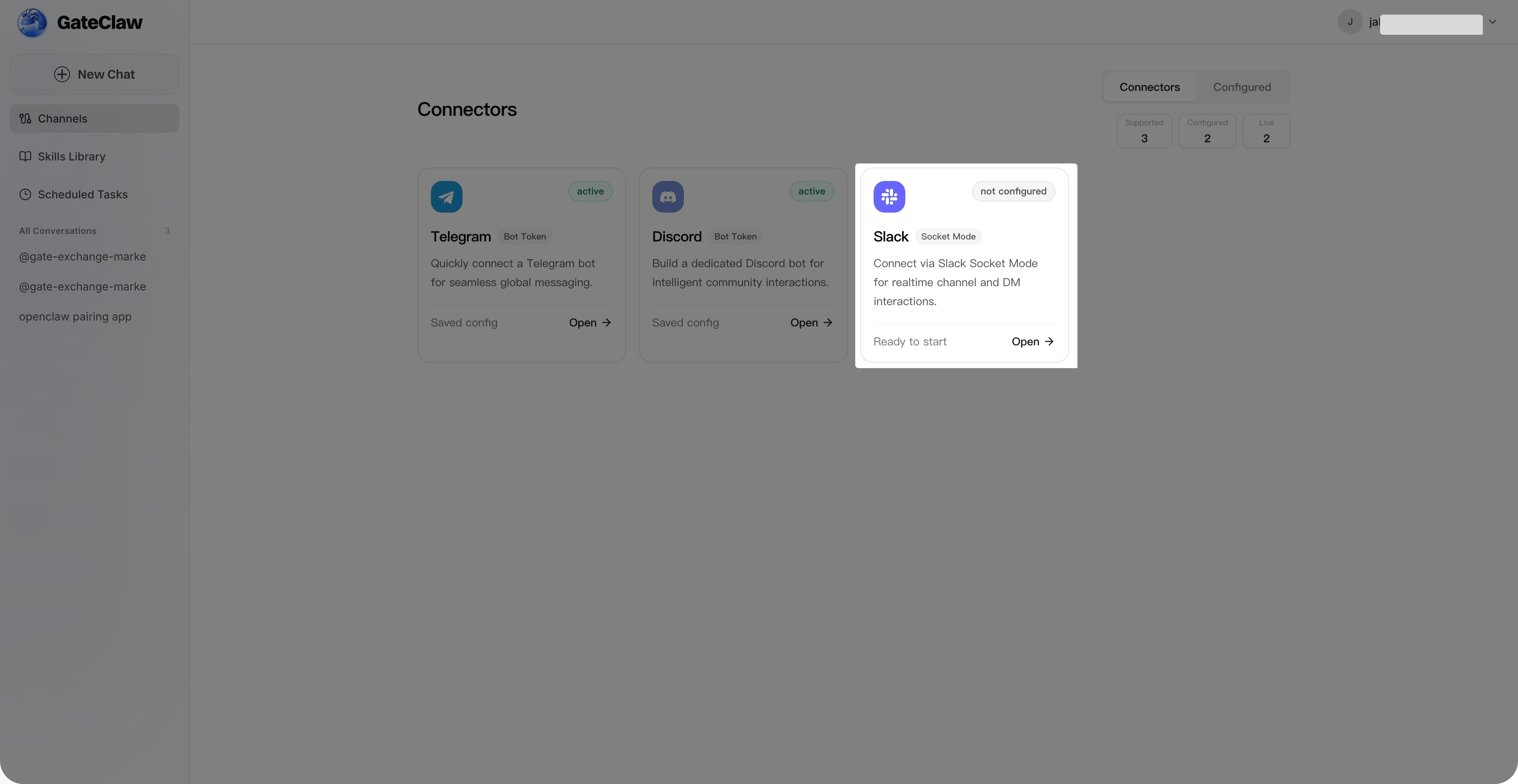
Paso 1: Comprobar el estado del conector
En la página de [GateClaw], haz clic en [Conexiones]. La interfaz mostrará los conectores configurados actualmente y su estado.
Paso 2: Configurar Slack
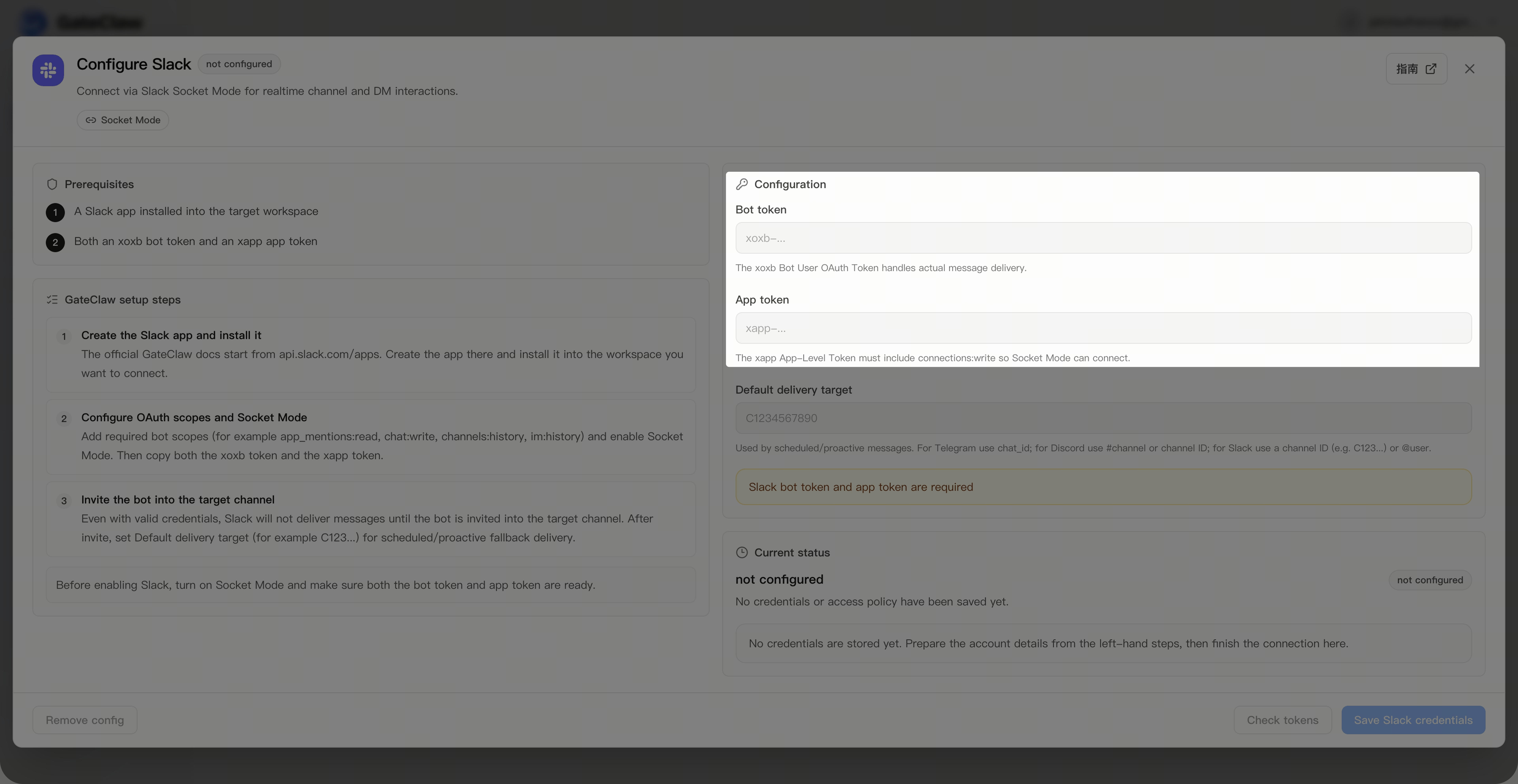
En la página [GateClaw] - [Conexiones], selecciona [Slack]. Aparecerá la página de configuración de Slack, donde tendrás que introducir el Bot Token y el App Token (puedes continuar con el siguiente paso).
Paso 3: Configuración de la aplicación de Slack
Realiza las siguientes operaciones en la página de gestión de tu aplicación de Slack para obtener tus tokens y la autorización.
-
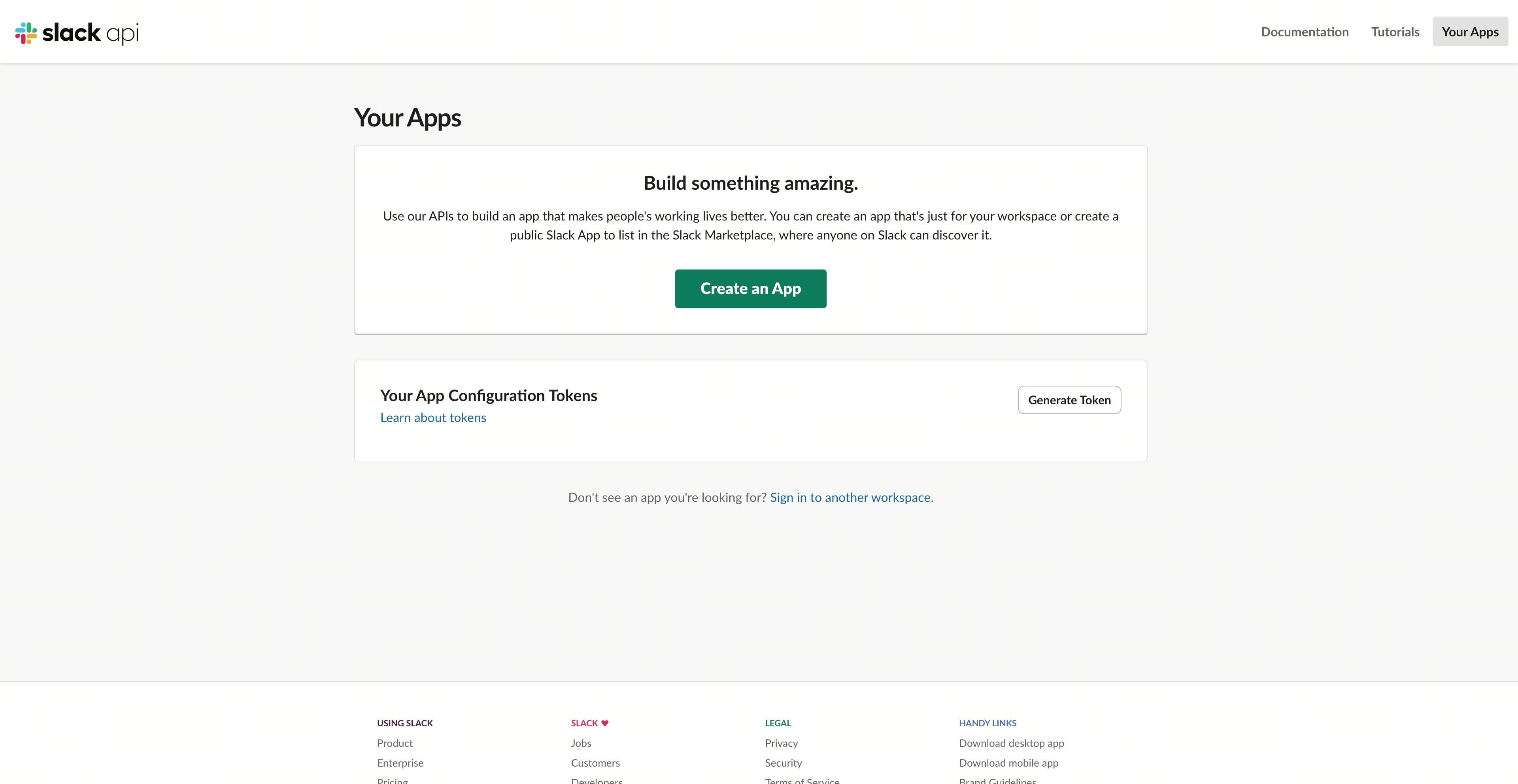
Inicia sesión en Slack vía web y accede a la página de gestión de aplicaciones de Slack: https://api.slack.com/apps
-
Haz clic en [Create An App], selecciona el método de configuración [From a manifest], elige tu espacio de trabajo de Slack e introduce el App manifest, luego confirma;
{ "display_information": { "name": "GateClaw", "description": "Slack connector for OpenClaw" }, "features": { "app_home": { "home_tab_enabled": false, "messages_tab_enabled": true, "messages_tab_read_only_enabled": false }, "bot_user": { "display_name": "GateClaw", "always_online": false }, "slash_commands": [ { "command": "/openclaw", "description": "Send a message to OpenClaw", "should_escape": false } ] }, "oauth_config": { "scopes": { "bot": [ "chat:write", "commands", "channels:history", "channels:read", "groups:history", "groups:read", "im:history", "im:read", "im:write", "mpim:history", "mpim:read", "app_mentions:read" ] }, "pkce_enabled": false }, "settings": { "event_subscriptions": { "bot_events": [ "app_mention", "message.im" ] }, "interactivity": { "is_enabled": true }, "org_deploy_enabled": false, "socket_mode_enabled": true, "token_rotation_enabled": false } } -
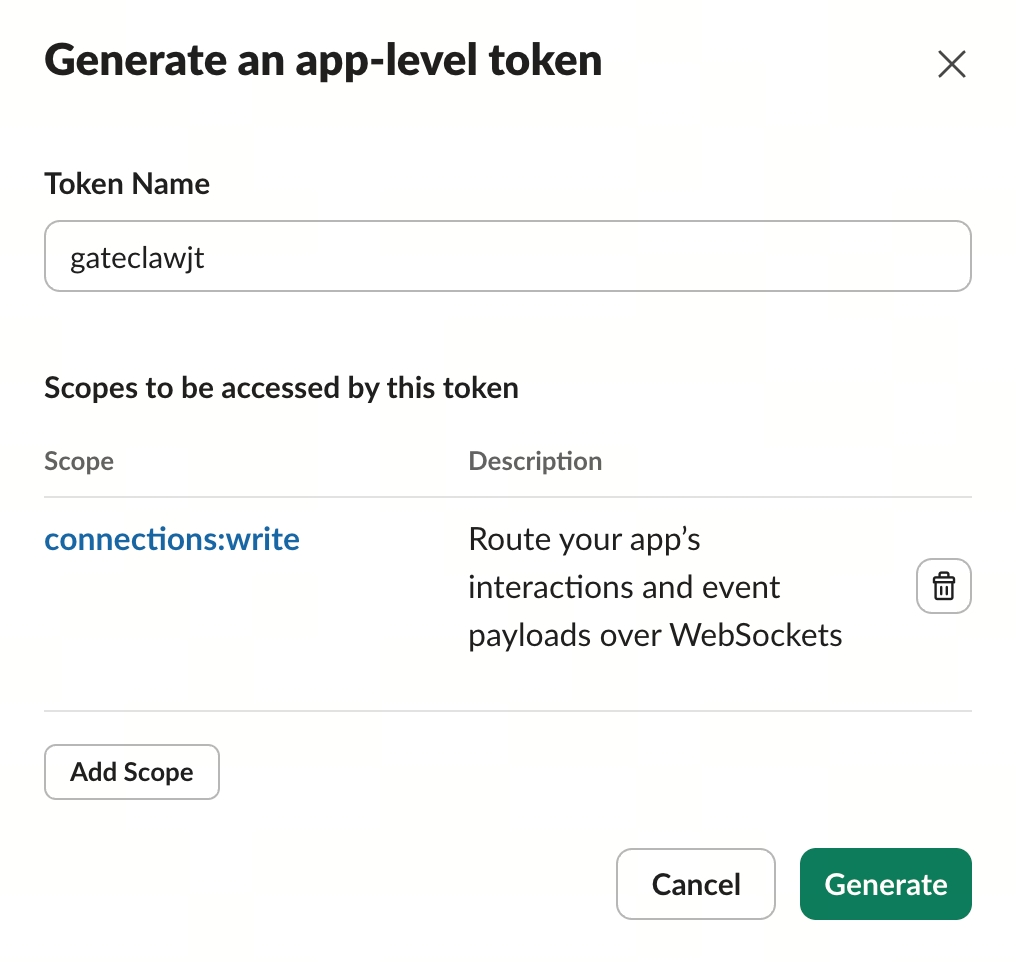
En la barra de navegación izquierda de la página de configuración de la App, haz clic en [Basic information]. Al final de la página, busca App-Level Tokens, haz clic en [Generate Token and Scopes], introduce un nombre para el Token y añade el permiso de Scope
connections:write(obligatorio, de lo contrario no se podrá establecer la conexión), luego confirma. Tras la generación, copia y guarda el App Token.
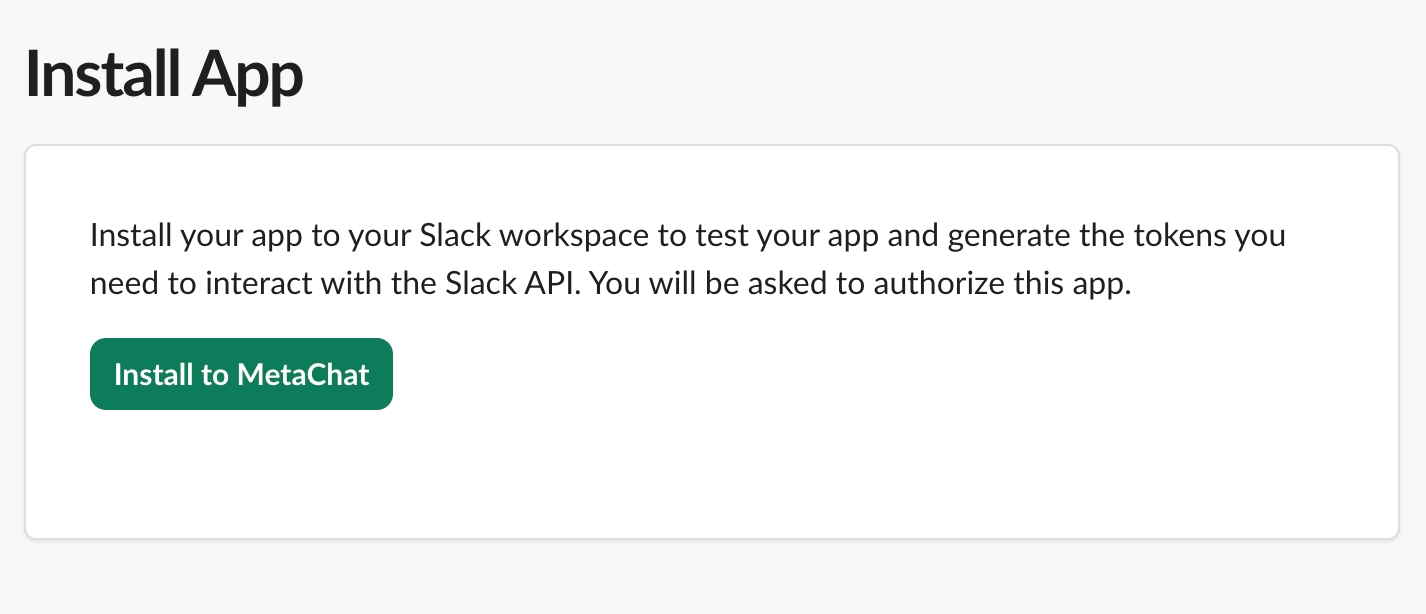
- En la barra de navegación izquierda de la página de configuración de la App, haz clic en [Install App], luego en [Install to Workspace] y, tras la autorización, copia y guarda el Bot Token.
Paso 4: Completar la configuración de Slack
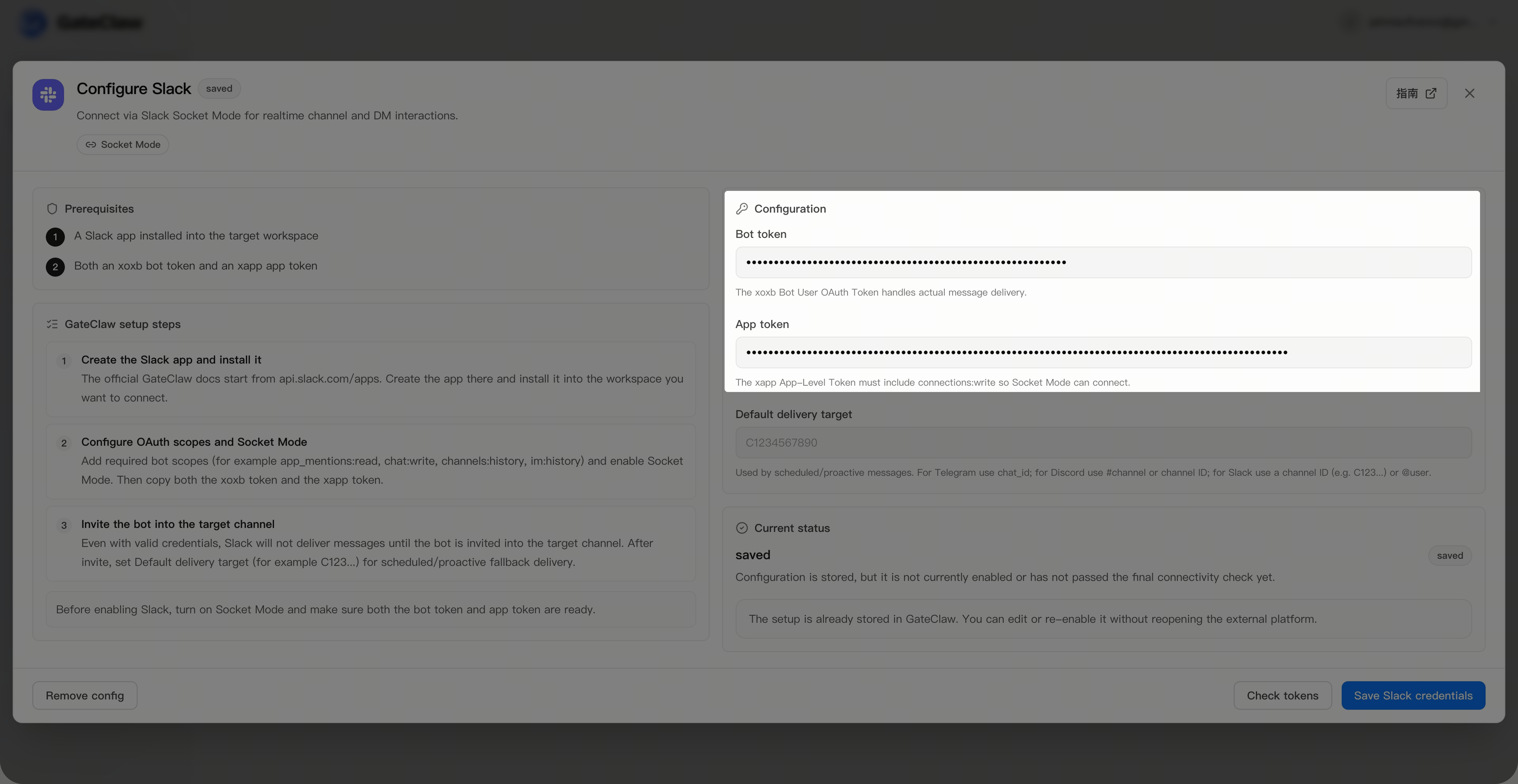
Vuelve a la página de configuración [GateClaw] - [Conexiones] - [Slack]. Introduce el Bot Token y el App Token que copiaste y guardaste, guárdalos y espera a que el sistema complete la configuración.
Paso 5: Conversación en Slack
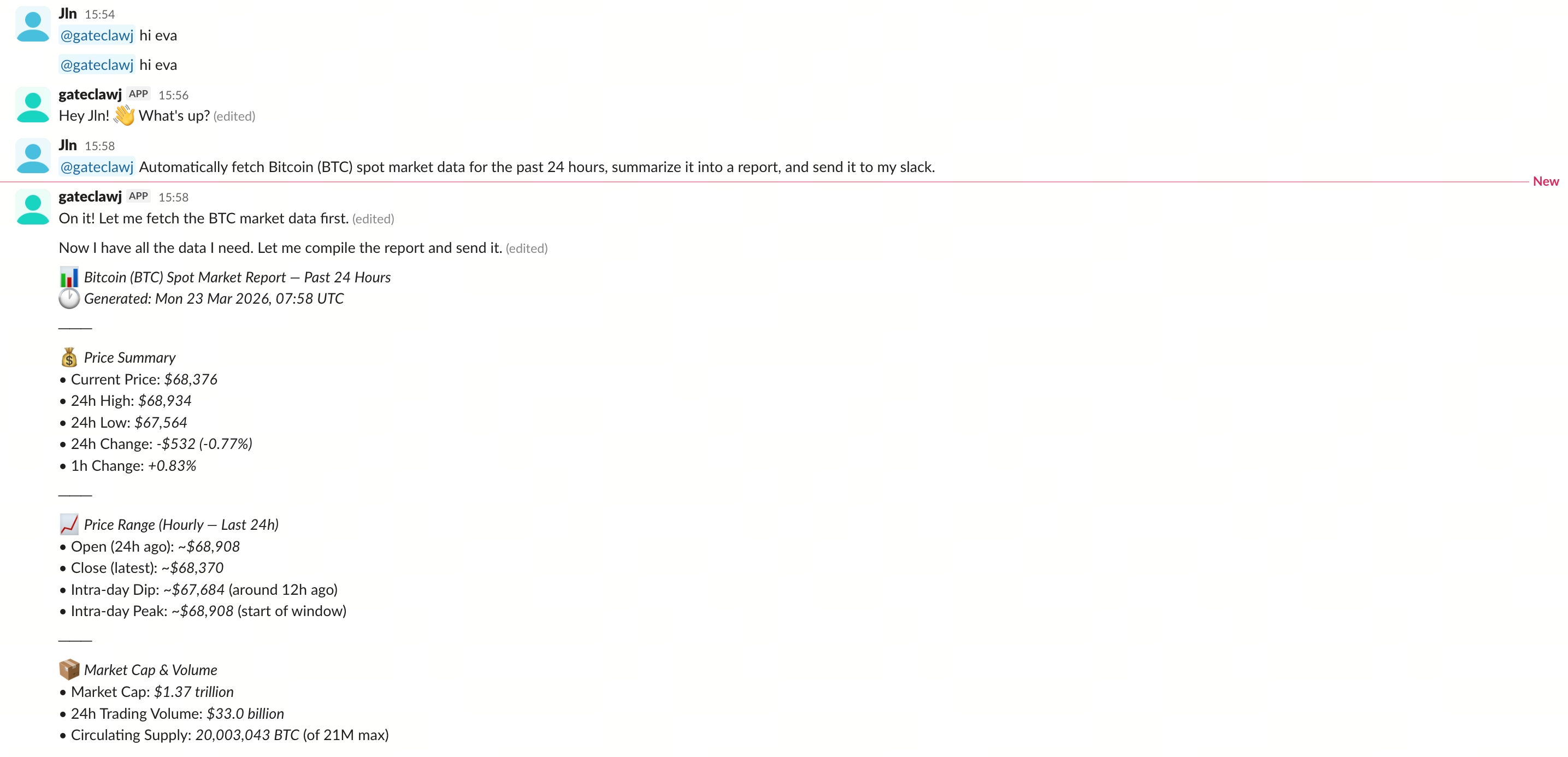
En tu ventana de conversación de [Slack], utiliza @Nombre del Bot para iniciar una conversación (si el Bot no se ha unido al canal, primero tendrás que invitarlo introduciendo /invite @Nombre del Bot en la conversación).
Preguntas frecuentes
P1: ¿Qué permisos necesito para configurar la conexión con Slack?
R: Debes ser administrador del espacio de trabajo de Slack o tener permisos para crear aplicaciones.
P2: ¿Cuál es la diferencia entre Bot Token y App Token?
R: El Bot Token se utiliza para la autenticación del Bot, mientras que el App Token se usa para la conexión en Socket Mode. Ambos son necesarios.
P3: ¿Por qué el Bot no recibe mensajes?
R: Por favor, asegúrate de que Socket Mode está habilitado y que los eventos app_mention y message.im están suscritos en Event Subscriptions.
P4: ¿Qué hago si el Bot no se ha unido al canal?
R: Introduce /invite @Nombre del Bot en la conversación para invitar al Bot al canal actual.
P5: ¿Qué hago si el Bot no responde después de la configuración?
R: Verifica que ambos tokens se hayan introducido correctamente, que Socket Mode esté habilitado y que las suscripciones a eventos estén configuradas correctamente. Si el problema persiste, contacta con el servicio de atención al cliente de Gate.
Notas importantes
GateClaw interactúa contigo a través del Bot de Slack. Todo el contenido que envíes al Bot y recibas del Bot debe cumplir con la Política de Uso Aceptable de Slack y las Políticas Legales. Si tu cuenta o espacio de trabajo de Slack es suspendido o bloqueado debido a contenido prohibido enviado o recibido a través del Bot, Gate no asume ninguna responsabilidad.
Descargo de responsabilidad
El contenido aquí proporcionado es solo para fines de referencia y educativos, y no constituye asesoramiento financiero, de inversión, comercial ni legal, ni constituye una oferta o solicitud para comprar o vender activos digitales. Gate no realiza declaraciones ni garantías, expresas o implícitas, sobre la exactitud, integridad o actualidad de la información contenida en este documento. Las características del producto, interfaces, normas y estructuras de tarifas pueden actualizarse o modificarse en cualquier momento. Consulta los comunicados más recientes y la información que aparece en la plataforma de Gate para obtener los detalles más precisos.
Las inversiones en activos digitales implican un riesgo significativo y los precios pueden fluctuar considerablemente. Podrías perder la totalidad de tu inversión. Toma decisiones con cautela en función de tu situación financiera y tolerancia al riesgo, una vez que hayas comprendido plenamente los riesgos asociados. Si es necesario, te recomendamos consultar con un asesor financiero o legal independiente.
Para más información sobre los posibles riesgos, consulta la Divulgación de riesgos y el Acuerdo de usuario de Gate.
