


Aplicabilidad
Aplicable a: Gate Web
Preparación: Asegúrate de haber iniciado sesión en GateClaw (Blue Lobster), tener una cuenta de Discord y permisos de administración de servidor
Tiempo estimado: 10 minutos
Objetivo
Esta guía te mostrará cómo configurar el conector de Discord de GateClaw (Blue Lobster) en Gate Web.
Pasos
Paso 1: Comprobar el estado del conector
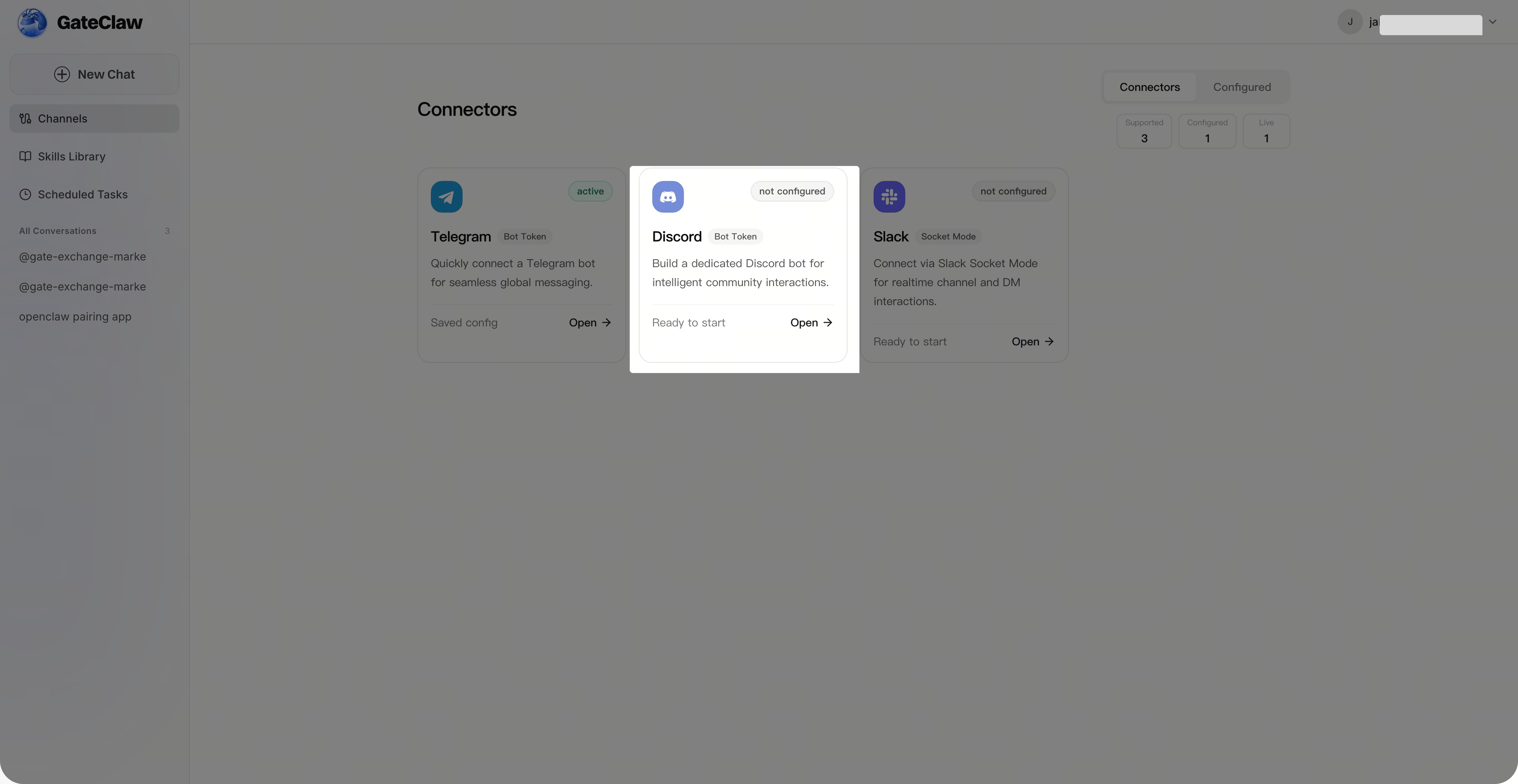
En la página de [GateClaw], haz clic en [Conexiones]. La interfaz muestra los conectores actualmente configurados y su estado.
Paso 2: Configurar Discord
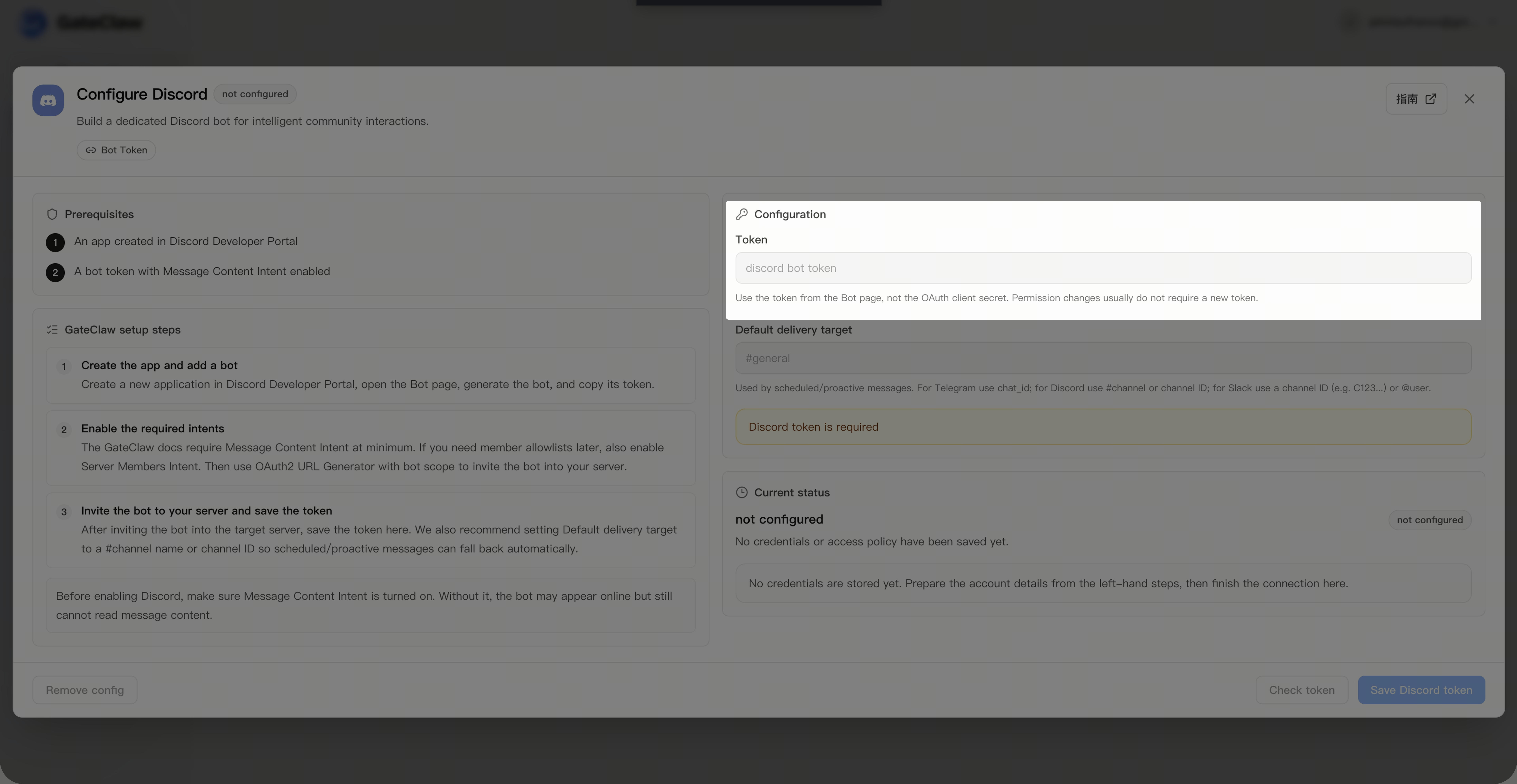
En la página [GateClaw] - [Conexiones], selecciona [Discord]. Aparecerá la página de configuración de Discord, donde tendrás que introducir el Bot Token (puedes continuar con el siguiente paso).
Paso 3: Obtener el Bot Token y la configuración de autorización
Realiza las siguientes operaciones en tu [Discord] para obtener el Bot Token y la configuración de autorización de tu Bot de Discord.
-
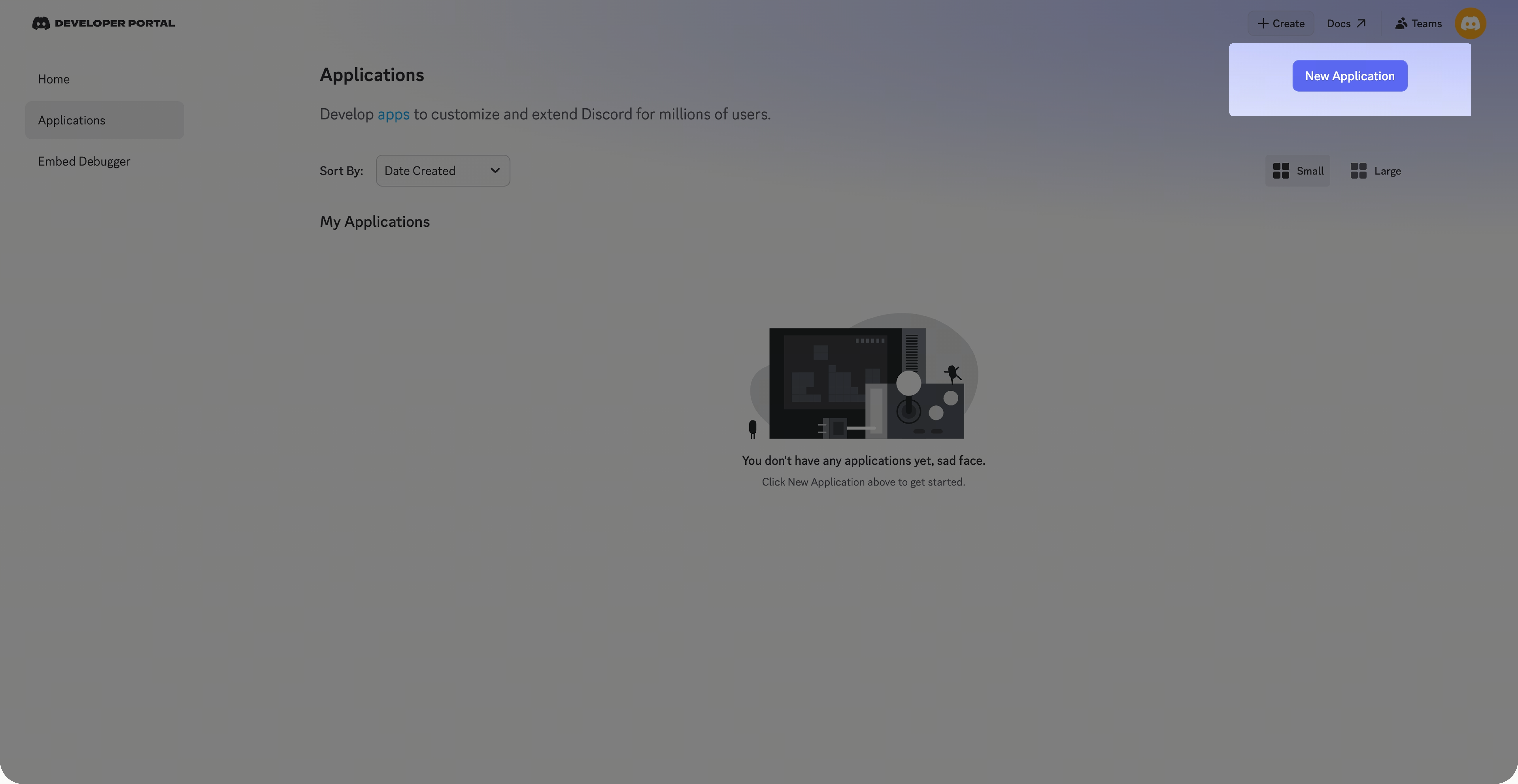
Inicia sesión en Discord desde la web y accede a la Comunidad de Desarrolladores: https://mcdiscord.com/developers/applications
-
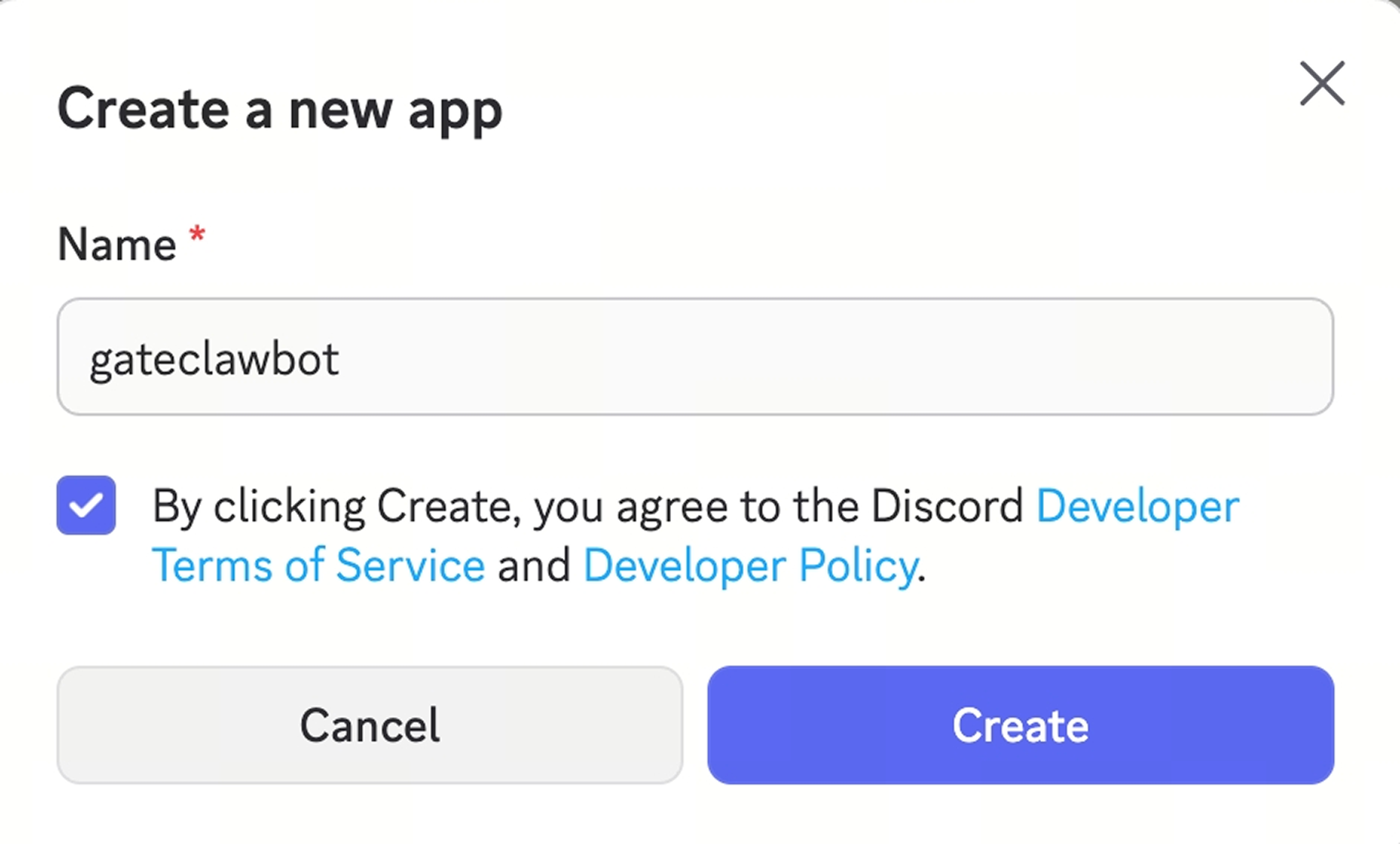
Haz clic en [New Application], introduce un nombre personalizado y confirma la creación.
-
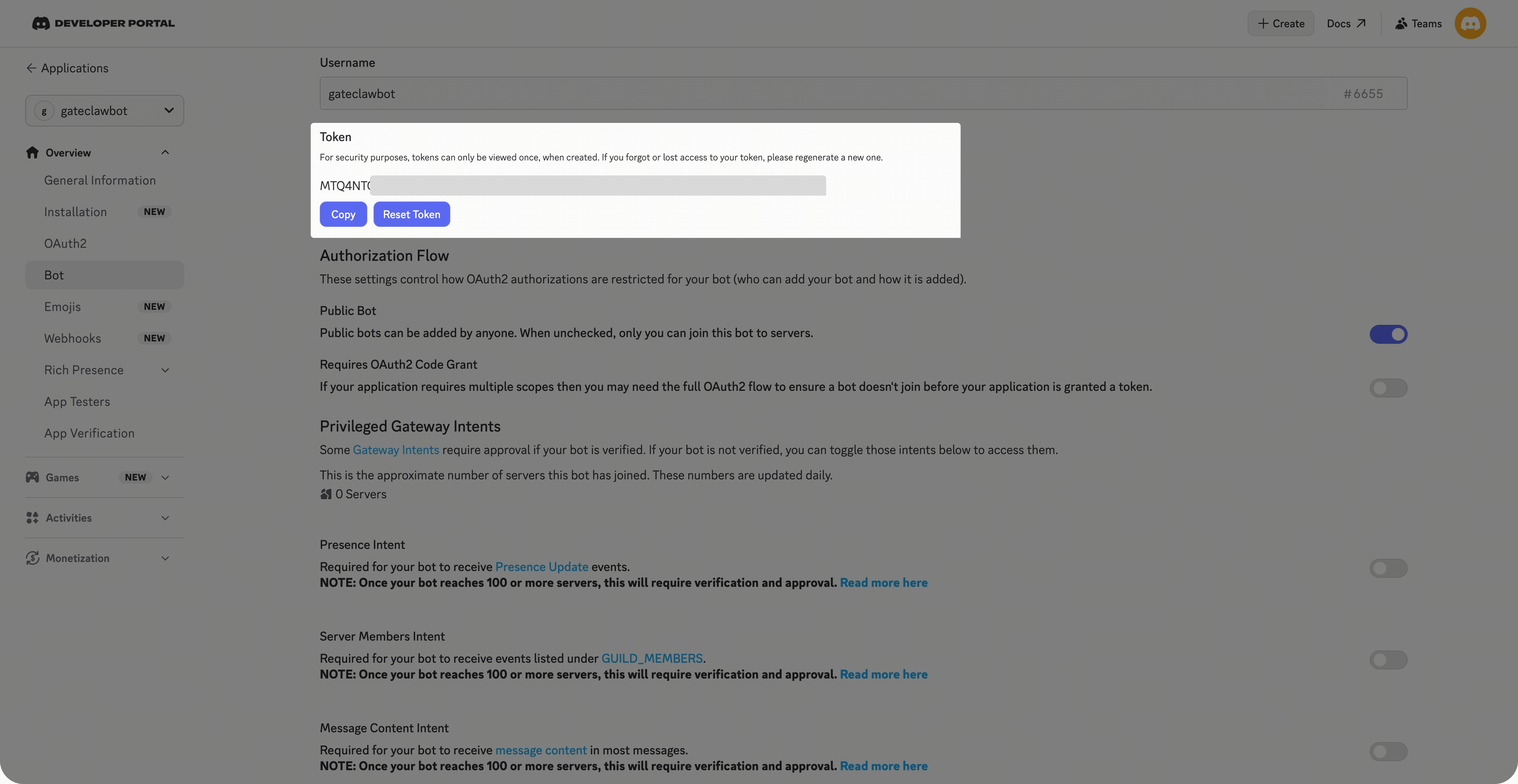
En la página de tu aplicación, haz clic en [Bot] y luego en [Reset Token] en la página del Bot para restablecer el token. Tras restablecerlo, se mostrará un nuevo token. Cópialo y guárdalo.
-
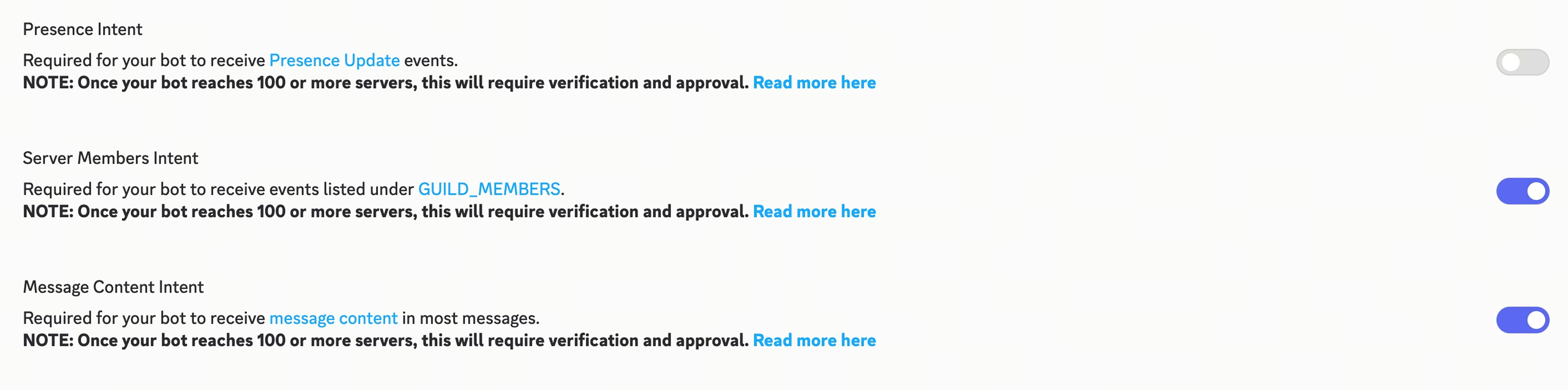
Continúa en la página del Bot y configura los Privileged Gateway Intents del Bot:
- Presence Intent (opcional, solo para actualizaciones de estado)
- Server Members Intent (recomendado, necesario cuando las listas de roles y los nombres coinciden con los IDs)
- Message Content Intent (obligatorio, para leer el contenido de los mensajes)
-
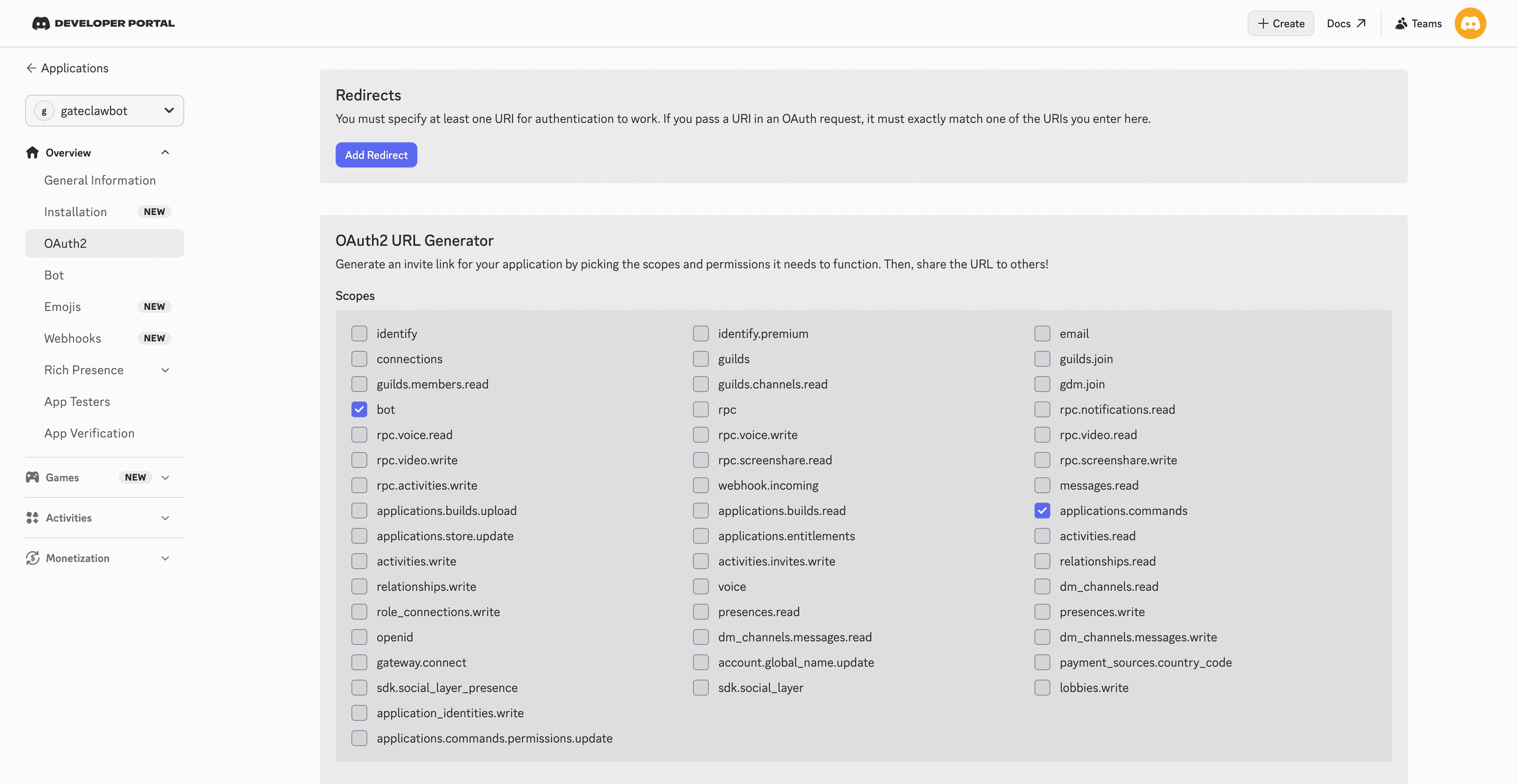
En la página de tu aplicación, haz clic en [OAuth2] para configurar los permisos del Bot:
-
Configura los alcances (scopes), siguiendo el principio de mínimo privilegio, priorizando bot y applications.commands
-
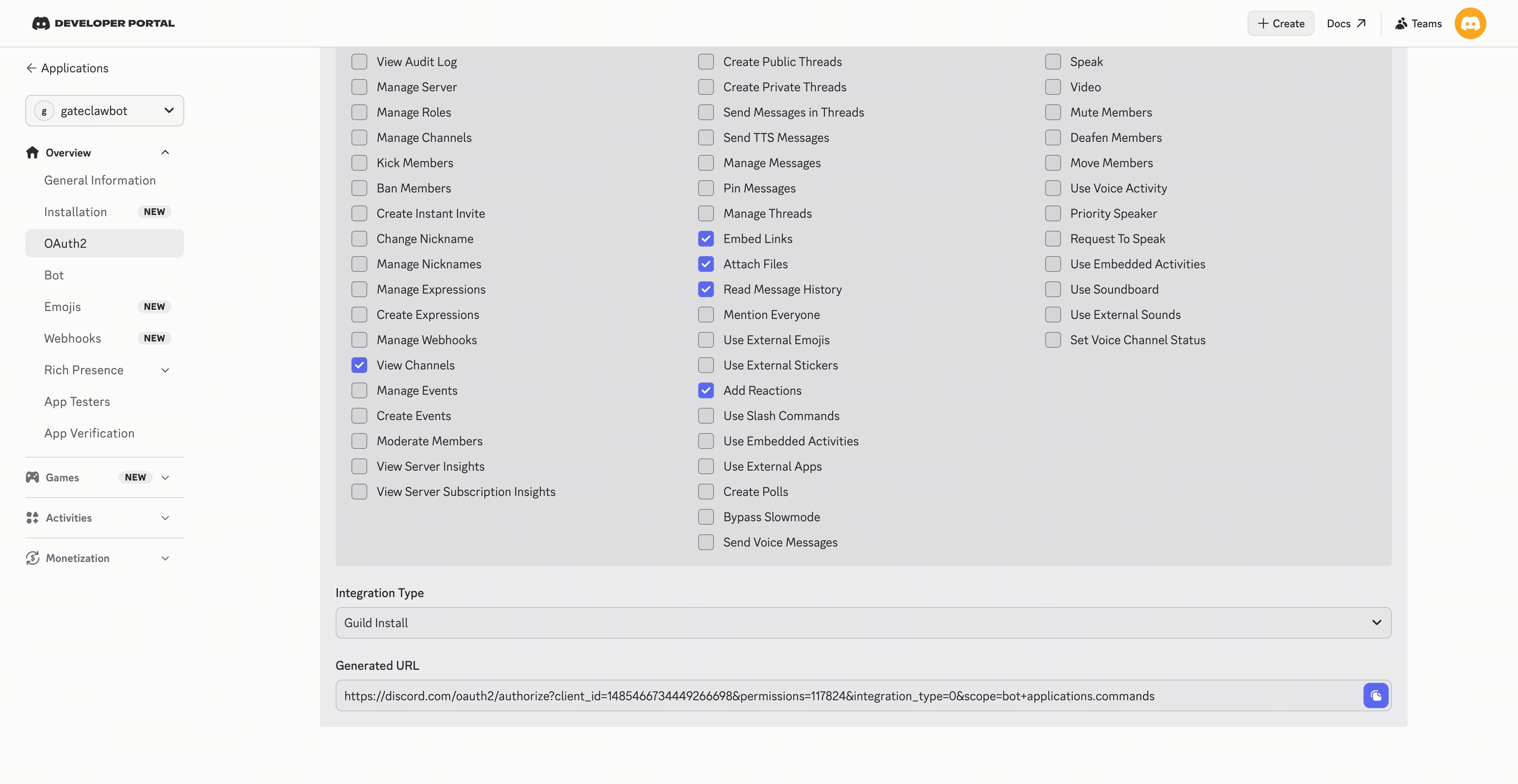
Configura los permisos del bot, siguiendo el principio de mínimo privilegio, priorizando permisos generales (Ver canal) y permisos de texto (Enviar mensajes, Insertar enlaces, Adjuntar archivos, Leer historial de mensajes, Añadir reacciones)
-
-
Continúa en la parte inferior de la página [OAuth2], copia la URL generada y ábrela. Después, invita al Bot a unirse a tu servidor de Discord y autorízalo (se requieren permisos de administrador del servidor). El Bot se unirá automáticamente al servidor de Discord.
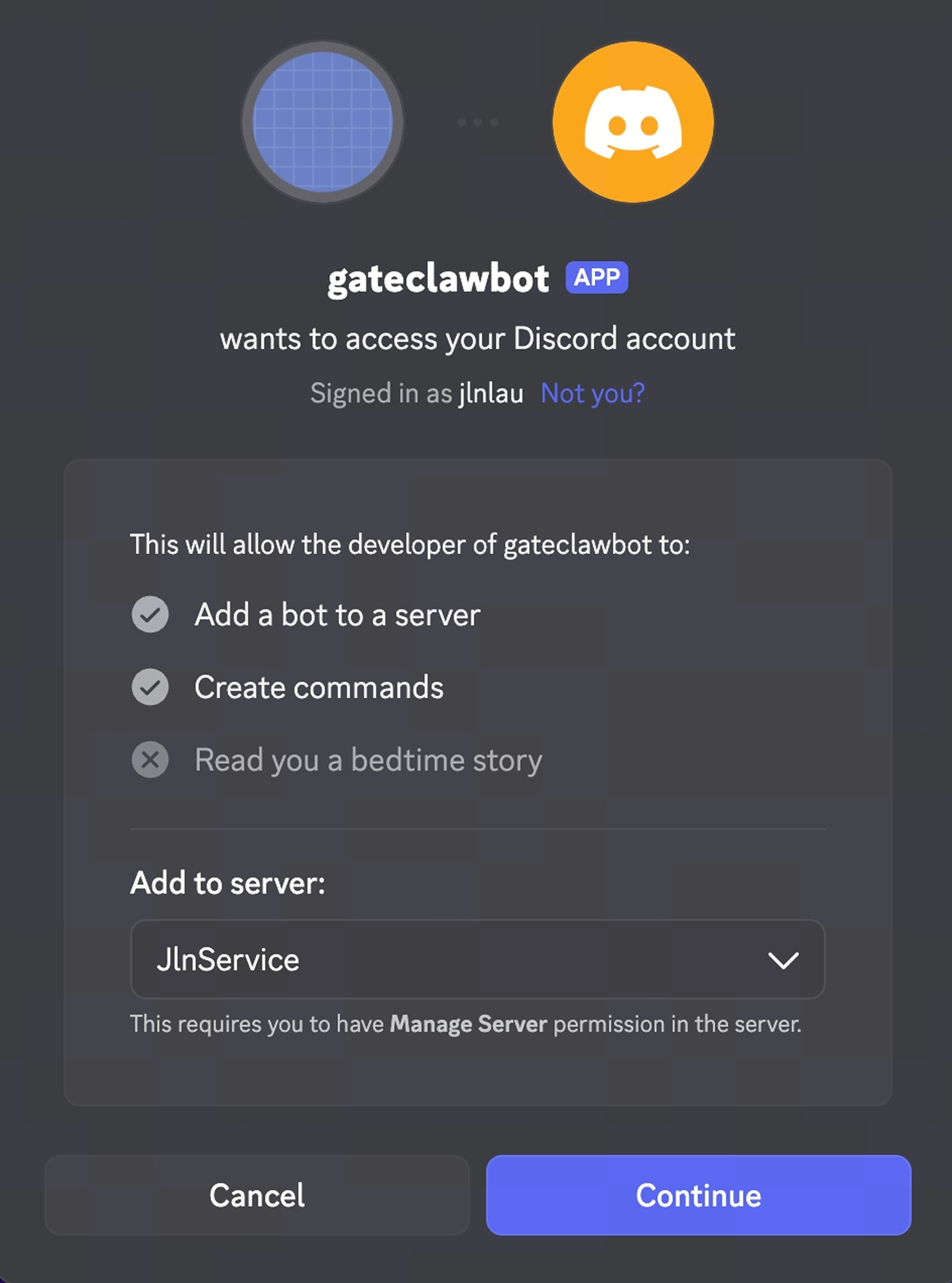
Paso 4: Completar la configuración de Discord
Vuelve a la página [GateClaw] - [Conexiones] - [Discord]. Introduce el Bot Token que copiaste, guárdalo y espera a que se complete la configuración.
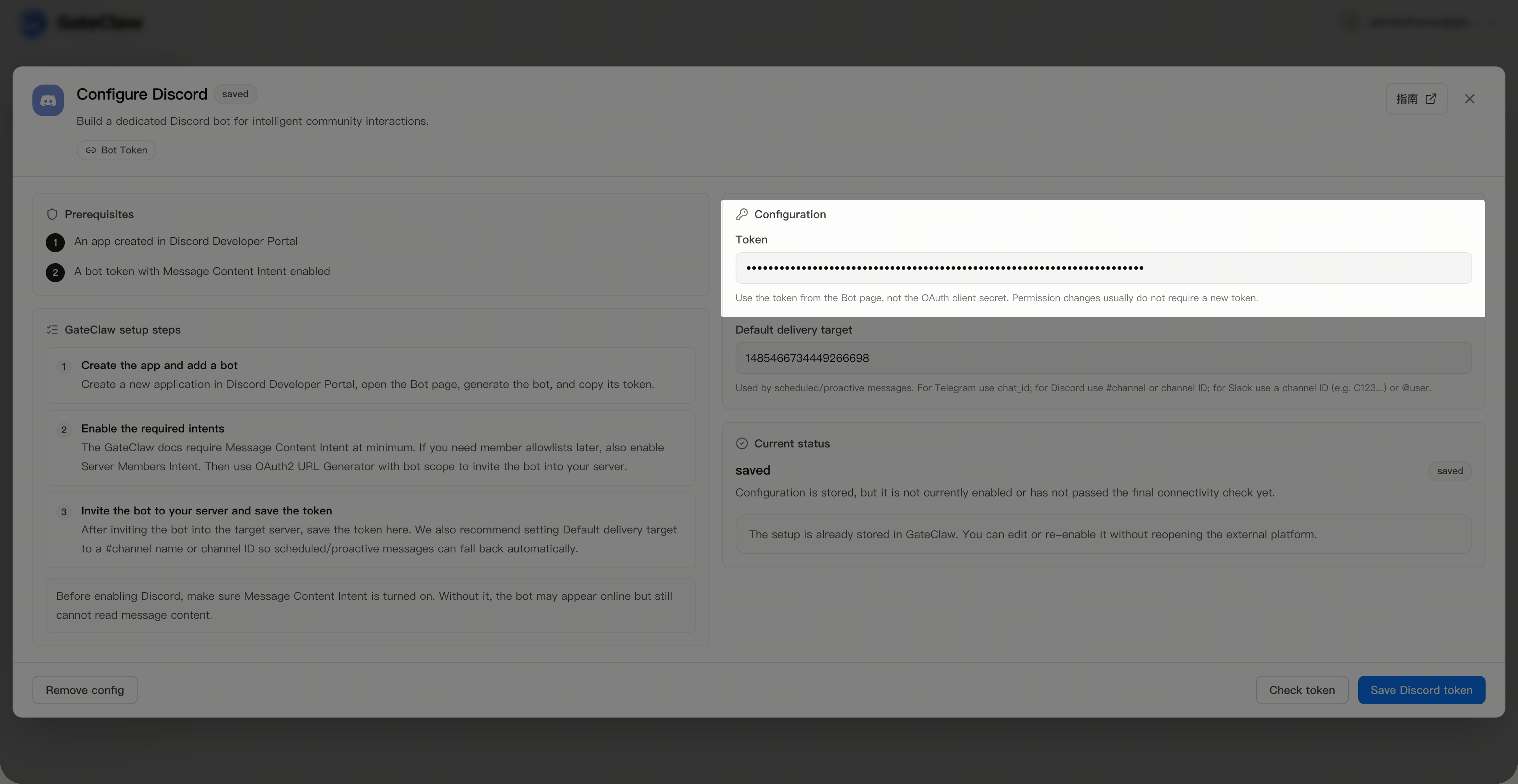
Paso 5: Conversación en Discord
En la ventana de conversación de [Discord], utiliza @Nombre del Bot para iniciar una conversación.
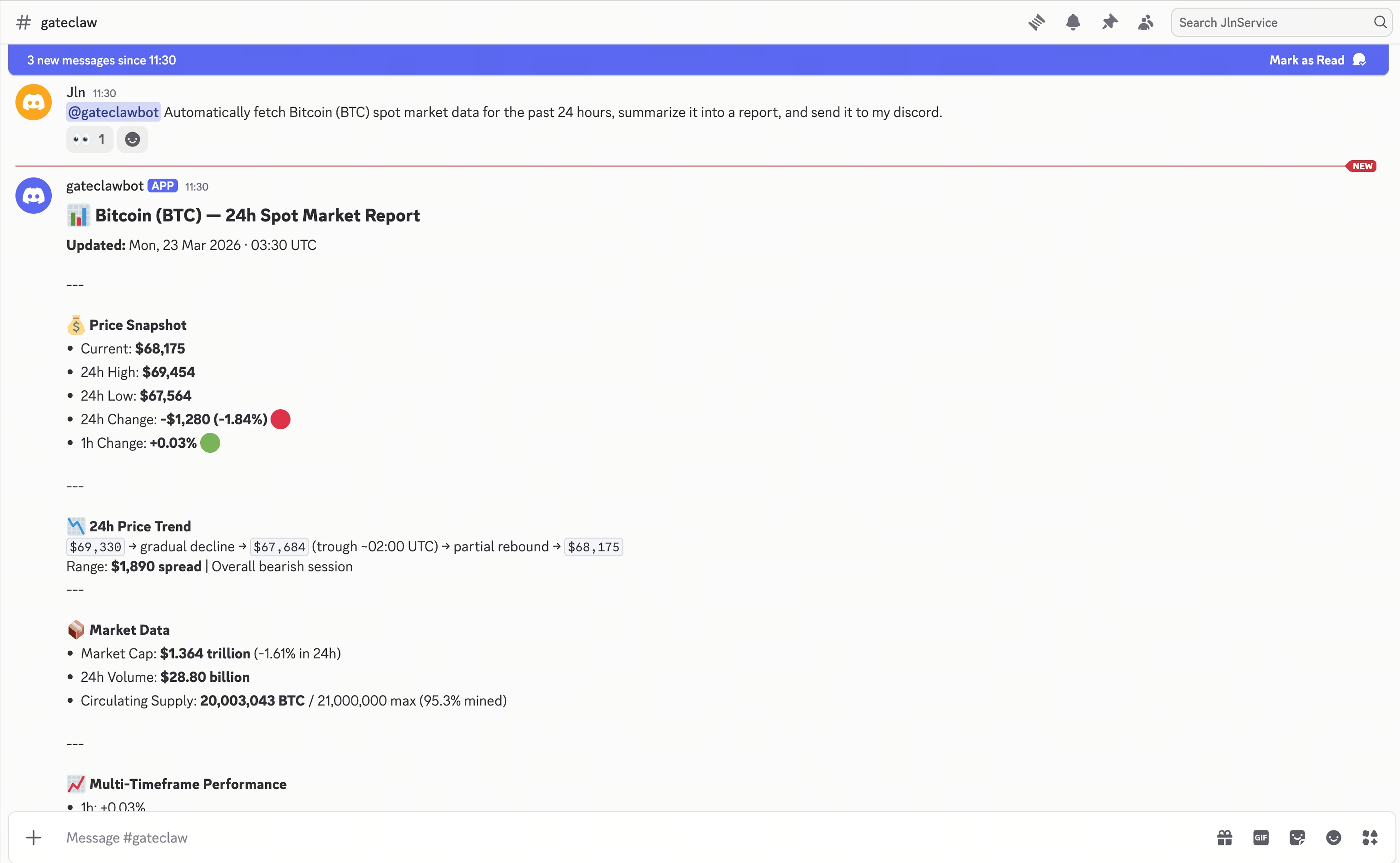
Preguntas frecuentes
P1: ¿Necesito permisos de administrador del servidor para configurar la conexión con Discord?
R: Sí, para invitar un Bot a un servidor de Discord se requieren permisos de administrador del servidor.
P2: ¿Qué debo hacer si se filtra el Bot Token?
R: Si el Bot Token se filtra, restablécelo inmediatamente en la página de desarrolladores de Discord y actualiza la configuración en GateClaw.
P3: ¿Por qué el Bot no puede leer el contenido de los mensajes?
R: Por favor, asegúrate de que el permiso "Message Content Intent" esté habilitado en la configuración del Bot de Discord.
P4: ¿Puedo añadir varios Bots de GateClaw a un mismo servidor de Discord?
R: Sí, un servidor puede añadir varios Bots, pero se recomienda utilizar solo uno para evitar confusiones en la gestión.
P5: ¿Qué debo hacer si el Bot no responde después de la configuración?
R: Comprueba que el Bot Token esté introducido correctamente y que el Bot se haya unido al servidor con los permisos adecuados. Si el problema persiste, contacta con el soporte de atención al cliente de Gate.
Aviso de cumplimiento
GateClaw interactúa con tu servidor a través del Bot de Discord. Todo el contenido que envíes o actives a través del Bot debe cumplir con los Términos de servicio de Discord y las Normas de la comunidad de Discord. Si tu cuenta o servidor de Discord es suspendido debido al uso inadecuado del Bot (incluyendo, entre otros, la publicación de contenido prohibido o el abuso de permisos del Bot), Gate no asume ninguna responsabilidad.
Descargo de responsabilidad
El contenido aquí proporcionado es solo para fines de referencia y educativos, y no constituye asesoramiento financiero, de inversión, comercial ni legal, ni constituye una oferta o solicitud para comprar o vender activos digitales. Gate no realiza declaraciones ni garantías, expresas o implícitas, sobre la exactitud, integridad o actualidad de la información contenida en este documento. Las características del producto, interfaces, normas y estructuras de tarifas pueden actualizarse o modificarse en cualquier momento. Consulta los comunicados más recientes y la información que aparece en la plataforma de Gate para obtener los detalles más precisos.
Las inversiones en activos digitales implican un riesgo significativo y los precios pueden fluctuar considerablemente. Podrías perder la totalidad de tu inversión. Toma decisiones con cautela en función de tu situación financiera y tolerancia al riesgo, una vez que hayas comprendido plenamente los riesgos asociados. Si es necesario, te recomendamos consultar con un asesor financiero o legal independiente.
Para más información sobre los posibles riesgos, consulta la Divulgación de riesgos y el Acuerdo de usuario de Gate.
